User manual
Testing locations
-
Introduction
Testing locations in the system mirror physical test venues, capturing details such as street address, phone number, building and unit numbers, city, country, postal code, state/province, room number, capacity per room, and time zone. Testing sessions can be created at these testing locations. When generating testing sessions from a testing location, the testing session automatically inherits properties like the time zone, testing location details, and assigned proctors.
-
Tile view
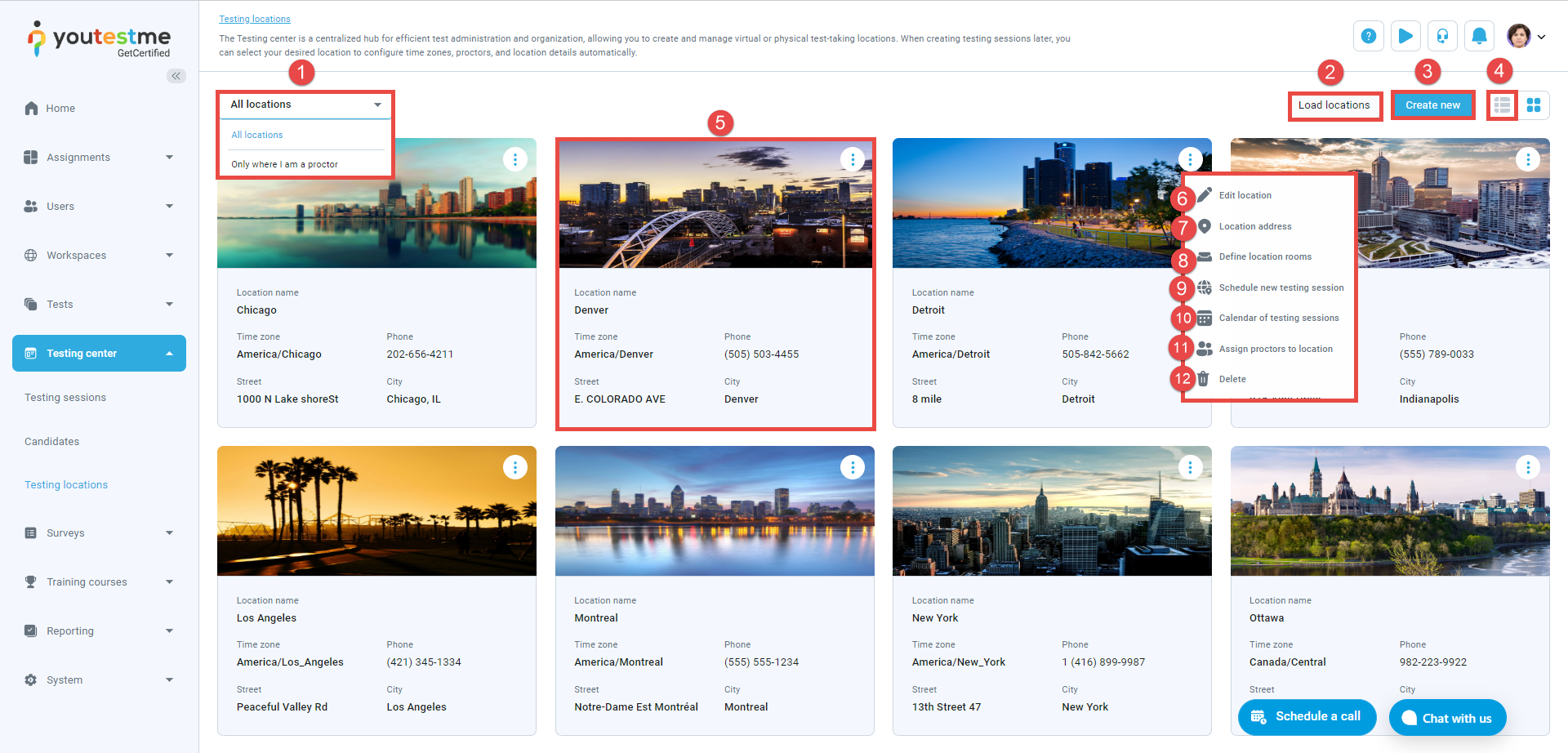
This is the default view for testing locations where you can:
-
Filter testing locations by:
-
All locations - Displays all testing locations within the system, whether created by you or other users.
-
Only where I am the proctor - Displays only those testing locations where you are assigned as a proctor.
-
Created by me – Displays only those testing locations that are created by you.
-
- Create new.
- Switch to list view.
-
Testing location tile - Each testing location is represented as a tile with details such as testing location name, time zone, phone, street, and city.
Additional options on this page include:
-
Edit testing location - Edit testing location name, external ID, time zone, description, capacity, and picture.
-
Testing location address - Specify the address of the testing location (street, phone number, building number, unit, city, country, postal code, state/province, additional address information).
-
Define testing location rooms - Specify the testing location more precisely by entering details about the specific room or classroom for the test. It's useful to store this information, especially when multiple rooms are available at the same testing location.
-
Manage proctors on testing session - View the list of proctors assigned to this testing session and assign additional proctors to monitor candidates.
- Delete - Remove testing location.
Note: The testing location cannot be deleted if testing sessions use this testing location.
-
-
List view
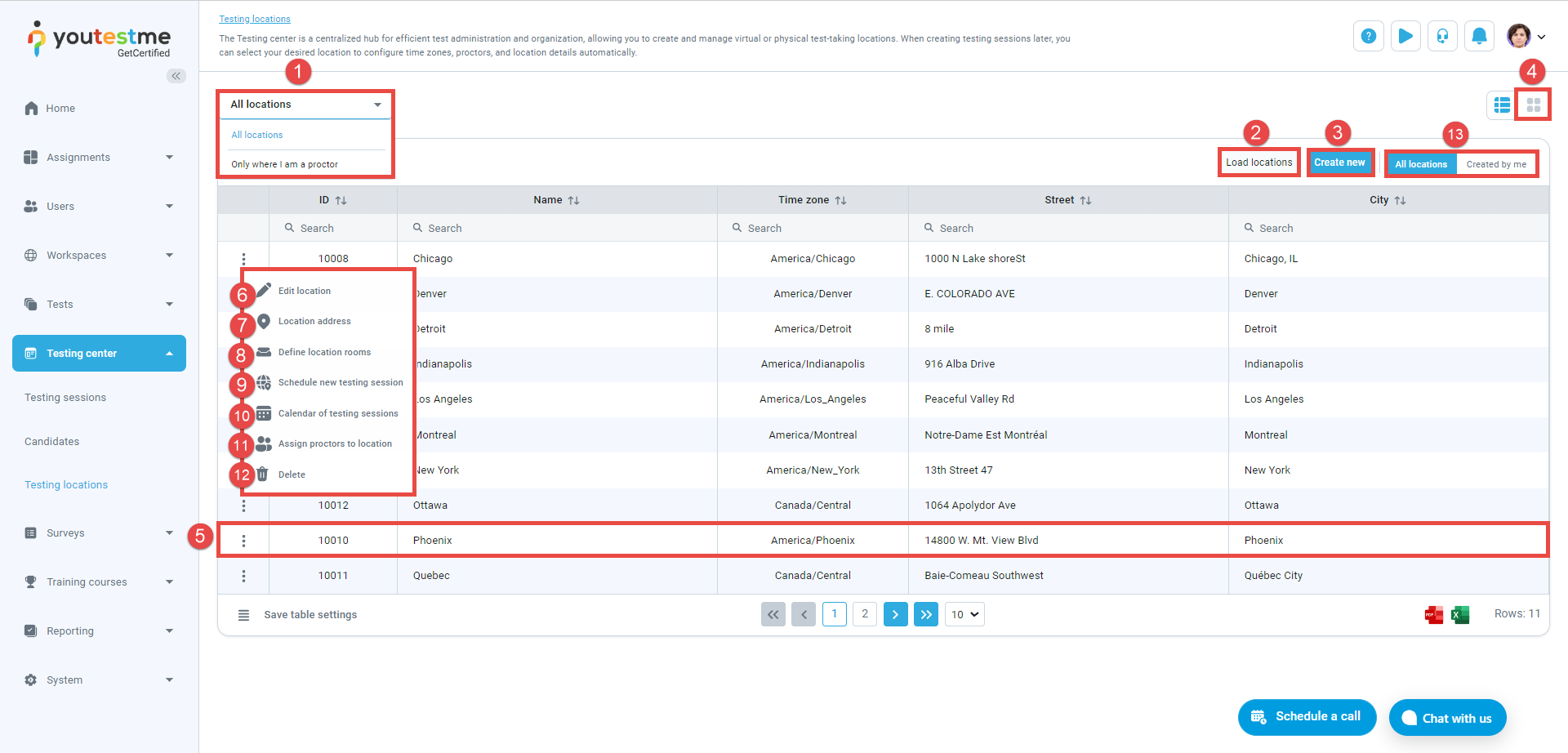
List view is an alternative display mode for testing locations, offering the same options as the tile view. In this view, you can:
-
Filter locations by:
-
All locations - Displays all testing locations within the system, whether created by you or other users.
-
Only where I am the proctor - Displays only those testing locations where you are assigned as a proctor.
-
Created by me – Displays only those testing locations that are created by you.
-
- Create new.
- Switch to tile view
- Testing location details - Each testing location is represented in a row with details such as testing location name, time zone, phone, street, and city.
-
Edit testing location - Edit testing location name, external ID, time zone, description, capacity, and picture.
-
Testing location address - Specify the address of the testing location (street, phone number, building number, unit, city, country, postal code, state/province, additional address information).
-
Define location rooms - Specify the testing location more precisely by entering details about the specific room or classroom for the test. It's useful to store this information, especially when multiple rooms are available at the same testing location.
-
Manage proctors on testing session - View the list of proctors assigned to this testing session and assign additional proctors to monitor candidates.
- Delete - Remove testing location.
-